Get shipment answers with the Flexport MCP
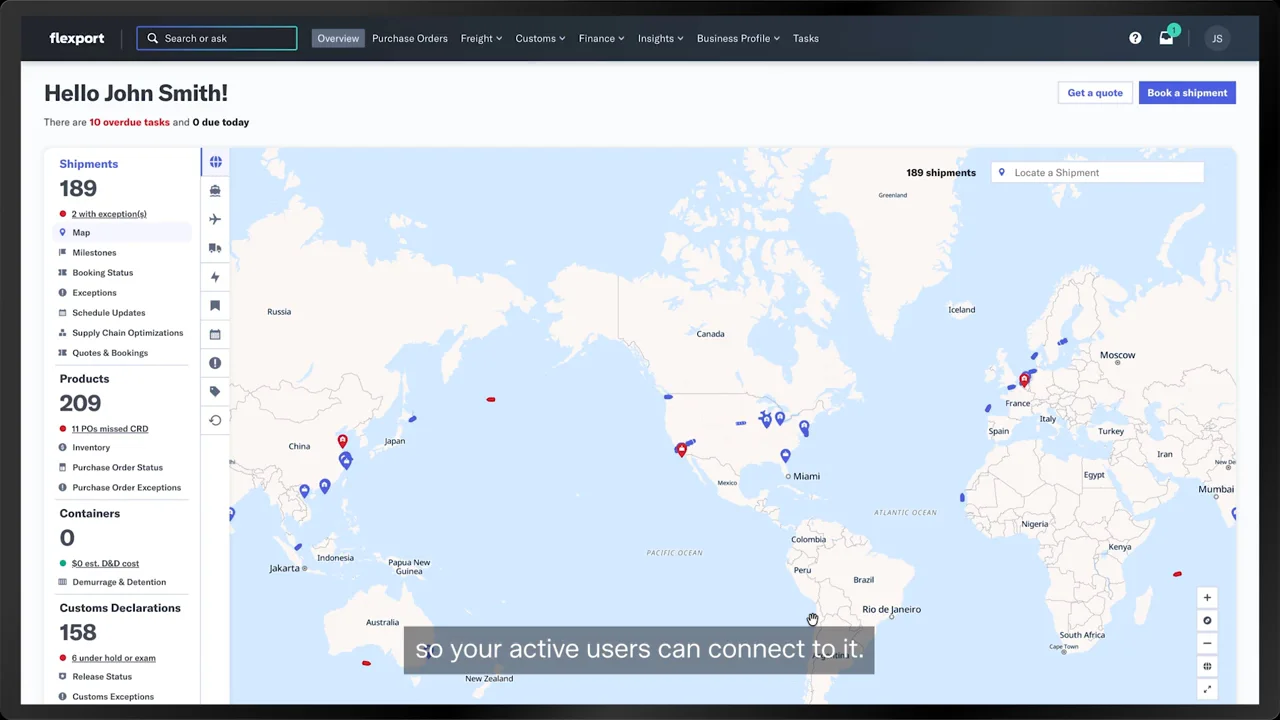
Couldn't load video
Get shipment answers with the Flexport MCP
When you need a shipment status, you usually log in to the portal and dig for it.
The Flexport model context protocol or MCP changes that, and setup starts with an admin.
As an admin, you enable the MCP for your whole account first so your active users can connect to it.
Click business profile in the navigation bar, then integrations.
You land on the MCP connection tab, where you'll switch it on.
This page shows the AI tools you can connect, what the agent can do, and how it works.
Click enable the MCP connection. A pop up asks you to confirm.
Everyone who connects keeps the access their FlexPort role already gives them.
Once it's on, you'll see active user connections. It lists everyone in your account who connects an agent, which agent they use, and when they authorized and last used it.
Now, let's get the first agent connected.
Every user can now connect the AI tool they prefer.
In account settings, the MCP connections tab shows the MCP as enabled.
It lists the supported AI tools and what the agent can do. If your company is building its own AI tool, the server link is right here too.
The connection always starts from inside your AI tool. So let's switch over and see what that looks like.
Your admin has done their part. So now you connect Flexport to the AI tool you use.
We're using Claude from Anthropic for this example.
The steps differ a little from one AI tool to the next, but the path from login to a connected MCP stays about the same.
In Claude, Flexport shows up as a connector you can add.
Open settings, then connectors, and browse the directory for Flexport.
Select Flexport and click connect to Claude.
That opens the Flexport login page where you sign in with your usual account.
Next, Flexport asks you to authorize Claude.
The screen shows which account you're signing into, and Claude only gets tools scoped to your role.
Click accept and connect.
The Flexport MCP is now connected, and you can see every tool it makes available to Claude.
Let's try a few prompts and see those tools at work.
With the connection live, Claude can answer questions from your Flexport data and take action on your behalf.
Start with a simple one. Ask for the shipments in transit that are due at the port of unloading in the next two days, the ones you'd want to keep an eye on.
Claude reads your prompt, checks which FlexPort tools can answer it, and picks the right one.
Here, it used browse shipments and came back with every shipment in transit that matches.
You can see where each one is, any status flags, and its containers.
To dig into one shipment, ask for more details on its Flex ID.
This time, Claude calls track shipment and lays out the full record from the route and container to custom status and any open exceptions.
Next, you'll move from tracking to action and get a rate for an upcoming booking.
Request an ocean rate from Shanghai to Los Angeles.
Claude asks a few follow-up questions first, so the quote comes back complete.
First, does Flexport need to pick up the cargo at origin?
You don't need pickup or delivery, so the answer is port to port.
With the route set, Claude asks for the Incoterm, and this one ships free onboard, or FOB.
Two more questions cover the cargo ready date and the container count. Your cargo is ready next Tuesday.
You need two forty foot containers.
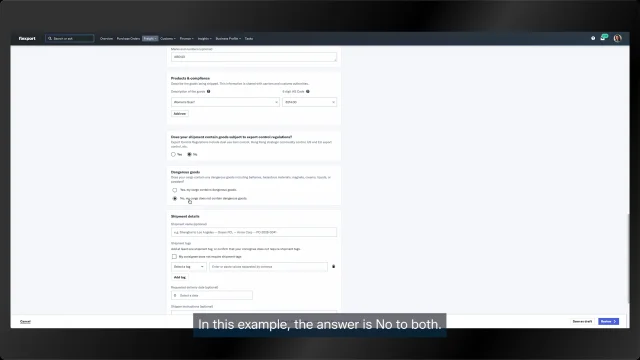
Claude also checks for dangerous goods, and there are none in this shipment.
Now Claude looks up the origin and destination ports, so it searches the right lane.
Confirm the details, and it searches for rates.
Claude hasn't used this tool before, so it asks for permission to search instant prices.
Choose allow once to keep that control for next time, or always allow if you'd rather skip the prompt.
Claude comes back with seven rate options and highlights three of them.
You like the Flexport ocean full container load or FCL standard option.
So ask Claude to break it down.
Claude returns the full charge breakdown with each line item, its category, the amount, and the bases.
Now you know exactly what you're paying for. So ask Claude to add four free days of detention.
In the same message, tell it to go ahead and book.
Before it submits anything, Claude shows you the full booking summary because this creates a real binding booking.
Review it one last time, then confirm.
The booking tool is new to Claude two, so it asks for permission again.
Choose allow once, and the booking goes through.
Flexport books the shipment, and you get the new plus a link straight to its details page.
Let's head back into the Flexport app and see what's changed with an agent connected and working.
In account settings, the MCP connections tab now lists your connected agents.
You'll see Claude, the date you authorized it and when you last used it, and you can disconnect it whenever you like.
Below that, a table shows what your agent can do on your behalf based on your role.
Back on integrations, admins see every agent connection across the organization.
Each row shows the user, the agent host, when they authorized it and last used it, and a revoke button. If you ever need to shut everything off, one switch disables the MCP for your whole account.
Switch it off and the page goes back to where you started, ready to turn on again whenever you need it.
Related videos
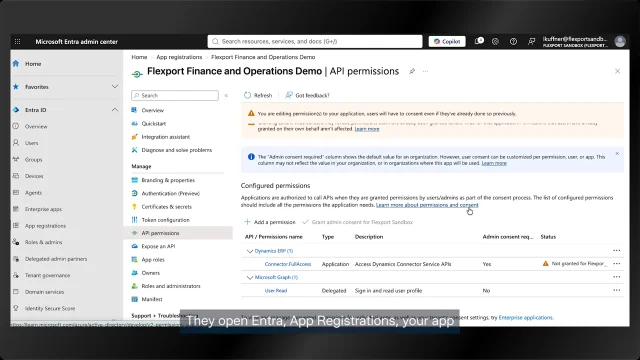 Product Demos10 Minute WatchWatch now
Connect Microsoft Dynamics 365 Finance & Operations to Flexport
Set up an ERP integration between Microsoft Dynamics 365 Finance & Operations and Flexport, starting from the integrations tab in your business profile.
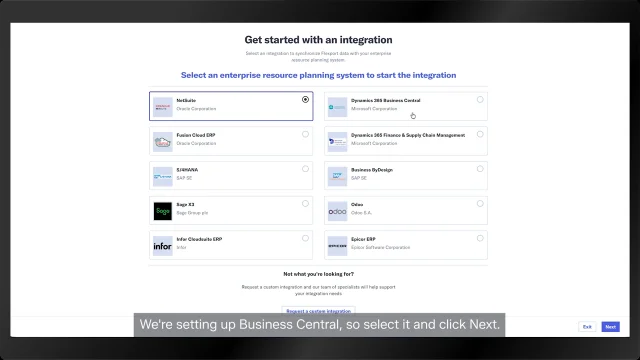 Product Demos10 Minute WatchWatch now
Set up a Microsoft Dynamics 365 Business Central integration
Walk through creating a Business Central ERP integration with Flexport, from the integrations tab to a connected account.
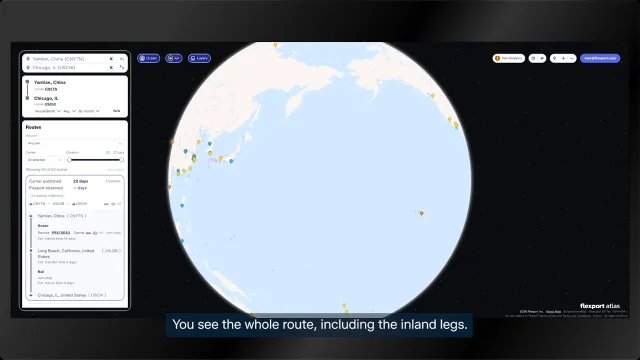 Product Demos2 Minute WatchWatch now
What's new in Atlas: rail, barge, disruption monitoring and emissions
Atlas routing now includes barge and rail legs, Flexport predicted dates, observed transit times, CO2 emissions per route, and AI-surfaced disruptions.
 Product Demos3 Minute WatchWatch now
First booking with Flexport: a guide for English-speaking shippers
Walk through your first shipment with Flexport in English.