Here's a quick look at the new tasks page in the Flexport app and everything that's changed.
Flexport rebuilt the whole page from the task list to every single task and the workspace where you complete it.
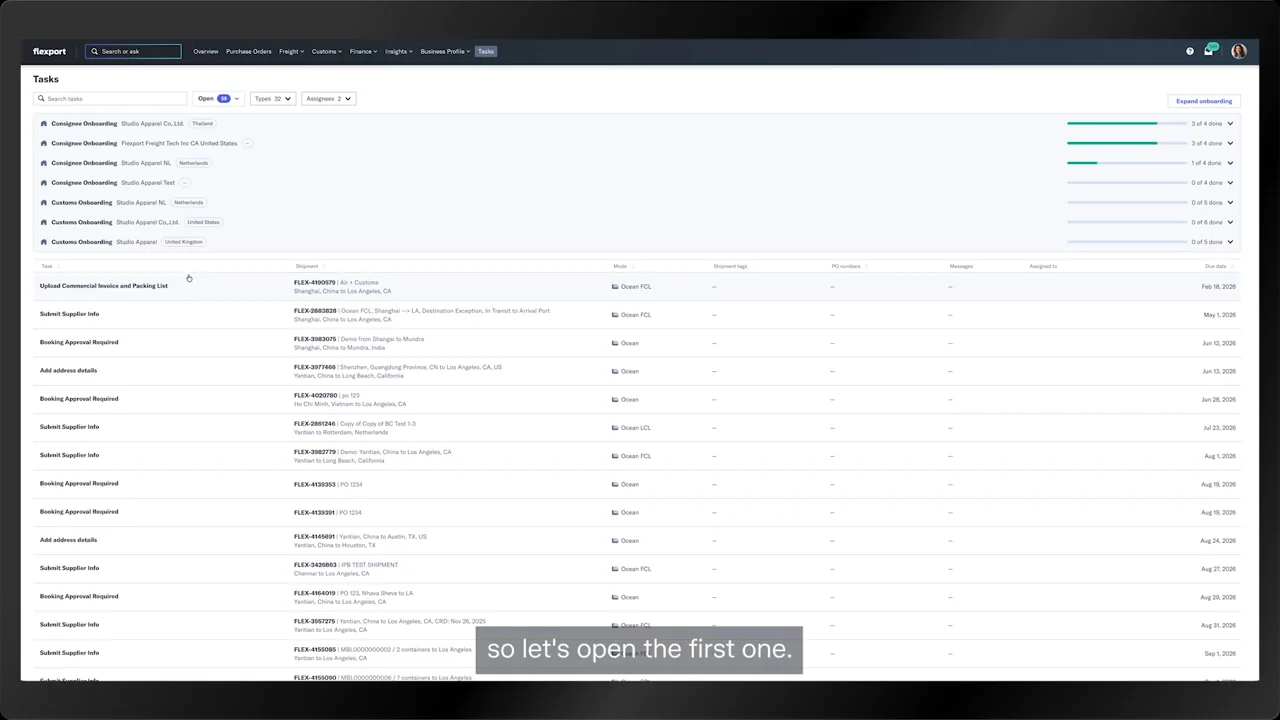
At the top, you'll see every entity your company is still onboarding.
This demo account has seven of them.
Each one shows how far along it is, what's left to do, who owns it, and when it's due.
Most accounts onboard fewer entities than this, and you track them the same way.
Once onboarding is finished, the whole section disappears.
Below that, you can filter the list to open tasks, overdue ones, anything due today, or tasks you've snoozed.
The types filter lets you work through one kind of task at a time and clear what's on your plate today.
Assignees shows who owns each task.
If you're an admin, it's the quickest way to spot tasks that are stuck with someone on your team.
And you can search for any task.
The bigger change is inside the tasks themselves.
So let's open the first one.
It opens right here on the page. Nothing sends you off to the shipment page or opens a new window.
On the left, your open tasks stay in view with the most overdue at the top, so you handle the most urgent shipments first.
In the middle is the task workspace where you complete each task.
This one asks for a commercial invoice and packing list.
Add your file, pick the document type, and submit it from this screen.
There's nowhere else you need to go.
Sometimes, you'll open a task and not remember which shipment it belongs to.
That's what the shipment reference panel on the right is for. It holds everything you need to know about the shipment behind the task.
You'll find the flex ID, the shipper and consignee, the cargo, and the booking details.
It also shows where the cargo is right now, whether that's the port of loading, on the water, or at the arrival port, plus the documents already submitted and the products in the shipment.
If a question comes up while you're working, open messages and write to Flexport right from the task.
Your message starts a thread that stays with the task.
Flexport replies there, and you'll see the conversation here in the task list or on the shipment page.
That was a document upload. Here's a different kind of task, a booking approval.
Again, you stay on the page.
Review the booking and click confirm booking.
The next task asks for supplier details because the consignee hasn't shared the main supplier contact for this booking yet.
Fill in the form and click submit supplier info, all in the same window.
Flexport has moved all 32 task types into this same workspace.
So every task works the same way.
You'll always know what to do and where to click with the context you need right beside it.
That's the new tasks page with every task in one place.